A few years ago, I wrote a post on how I automated SMS forwarding using second-hand 3G modems and a Gammu SMS daemon running on a Linux server.
This setup worked well for a while, but then became outdated due to the instability of USB dongles and the planned deprecation of 2G and 3G networks in Europe.
One day, I got tired of replugging USB modems and manually restarting containers, so I decided to look for a new solution.
First, I thought I would build my own device using existing 4G modules for an ESP32 or a Raspberry Pi, but I quickly discovered it would cost me a fortune to support two or more SIM cards.
Then I looked for off-the-shelf solutions. I found some cool 8/16/32+ SIM support boxes from Chinese vendors. But again, they were pricey, and I didn’t need so many SIM cards.
After that letdown, I returned to the old, forgotten idea of using a dedicated Android device for my task.
Device
I didn’t have a spare Android device at home, so I looked for a second-hand working one with two SIM slots on Wallapop.
I ended up buying a Moto E14 for €25.
I tried to root it as soon as I received it, mostly out of curiosity and to gain better control over my device. But I was unable to find a working solution for that.
So I gave up and tried to configure everything without root access.
Spoiler: I succeeded. No root was needed.
Software
I had two SIM cards, and the current setup forwarded SMS messages to different Telegram channels.
I looked for an app that would allow me to do so. I considered the telegram-sms app, but after a quick look, it seemed not to support splitting SMS messages into separate chats.
In the end, I chose to go with an android_income_sms_gateway_webhook. It does not support Telegram specifically, but it lets you configure a webhook that can call any service, including Telegram.
However, to split SMS messages from different SIM cards into separate channels, I needed to implement a webhook handler, which took Codex about five minutes.
Here is a link to the GitHub repository: github.com/alikhil/sms-forwarder-telegram-webhook
It is a simple, stupid Python web server that parses the JSON and sends two JSON requests to Telegram servers for the right channel.
I deployed the webhook handler in my homelab using Docker Compose, and it became the bridge between the Android app and Telegram:
services:
  sms-webhook:
    build: https://github.com/alikhil/sms-forwarder-telegram-webhook.git#main
    restart: always
    environment:
      DEFAULT_TARGET_CHAT_ID: -88005553535
      SIM1_TARGET_CHAT_ID: -100500
      SIM2_TARGET_CHAT_ID: -100500800
    env_file:
      - .env # includes TELEGRAM_BOT_TOKEN
    ports:
      - "8000:8000"
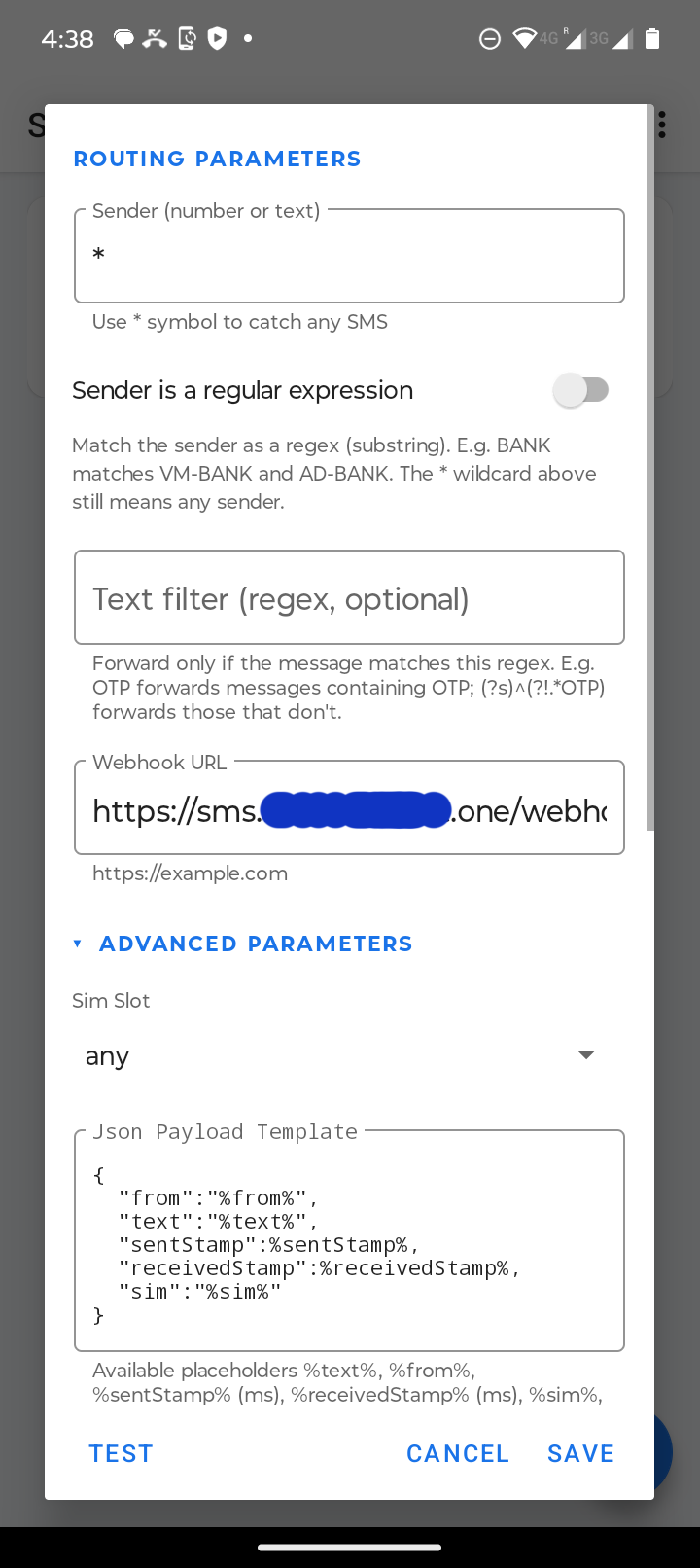
I configured the app to send SMS messages:
 |
|---|
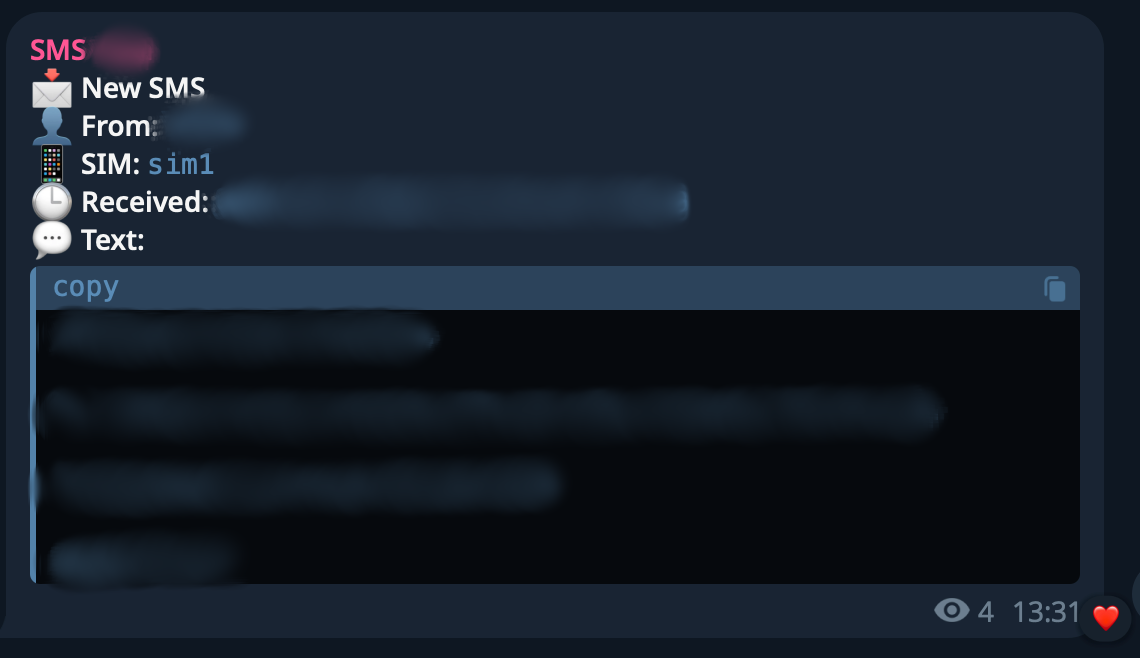
That’s it. The SMS forwarding path was working end-to-end.
Monitoring
After the pain of previous solutions, I wanted to be notified if something failed.
If I did not receive an SMS that I was expecting, I would not know that I had missed it. The app might crash, or the battery might run low.
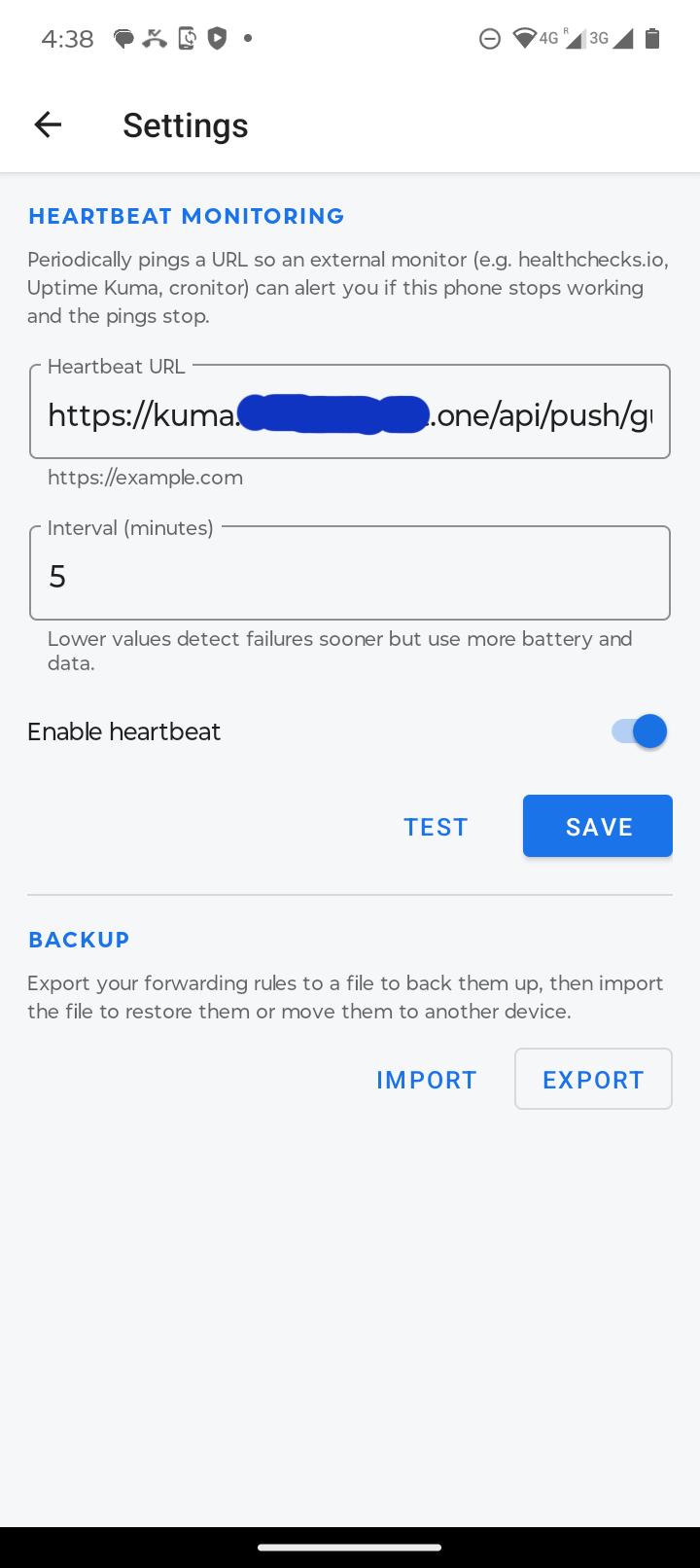
Fortunately, the SMS gateway app supports sending heartbeats.
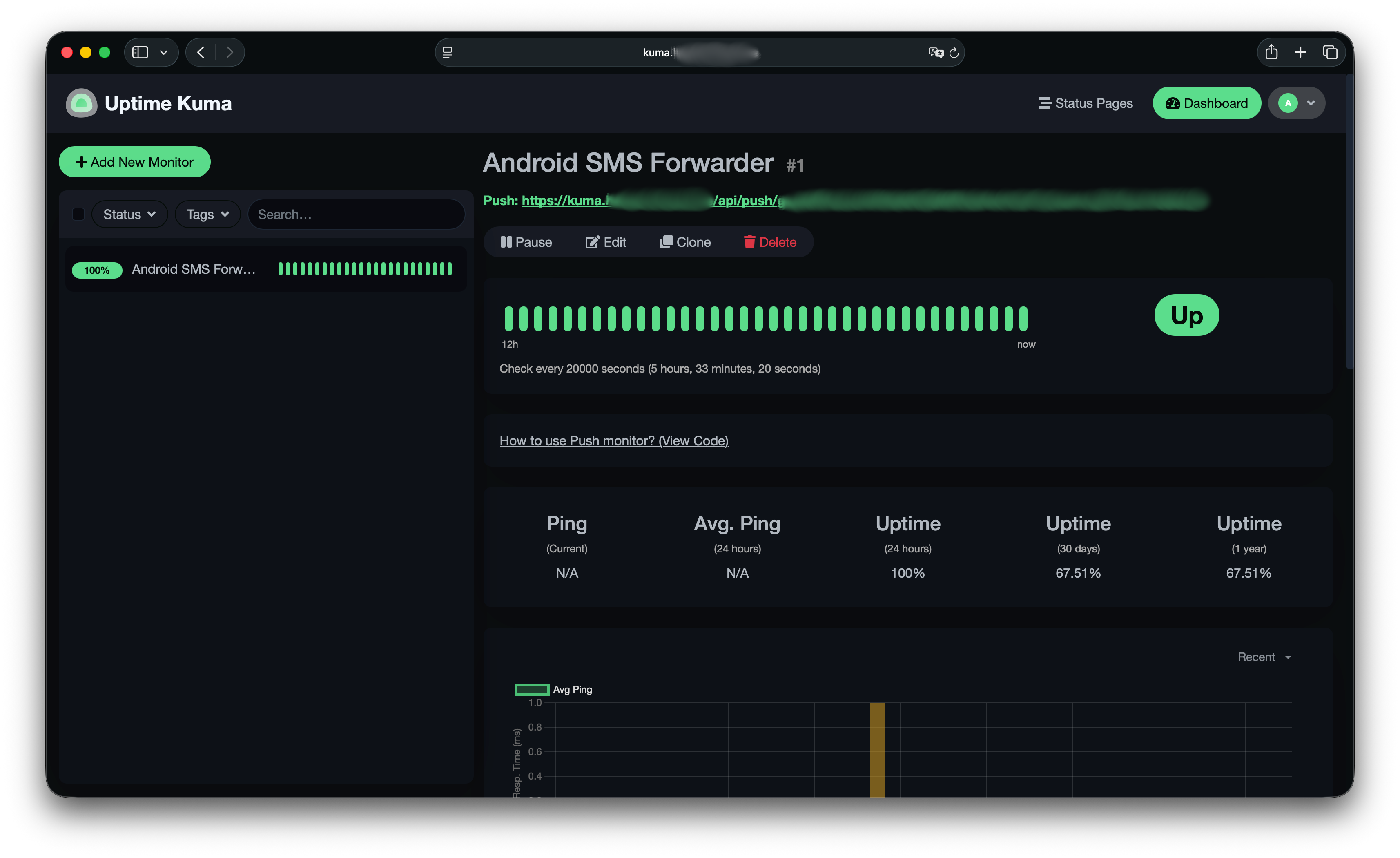
I set up a Uptime Kuma monitor and configured the app to send heartbeats every 5 minutes. Kuma expects a heartbeat every 5 hours.
 |
|---|
The values were tuned empirically because the app does not strictly follow the schedule. As I understand it, this is a technical limitation of the app running in the background.
But it is okay for me, even if I learn about a failure after twice the normal interval.
Power management
I didn’t want my Android device connected to a power supply all the time because I believed the battery health would suffer as a result.
Also, I didn’t want to connect and disconnect it manually every time. I’m an engineer, after all. It must be automated.
I wanted it to work like this:
- If the battery level is below 20%, connect the power.
- If the battery level is above 90%, disconnect the power.
I had a spare smart and controllable Shelly Plug that I could use for such automation.
I could probably use one of the Home Assistant plugins to implement it, but I don’t use Home Assistant and didn’t want to install it just for this small use case. That would be overkill.
The next step was to find Android apps that could send a webhook when the battery reached a certain level.
There were surprisingly few decent apps for this. It seems like a very niche use case.
The only thing I found was Android Remote Notify. And, of course, I couldn’t configure Shelly automation directly there.
So, Codex handled another simple webhook handler that calls the Shelly Plug API when the battery reaches a certain level.
services:
  battery-webhook:
    build: https://github.com/alikhil/android-remote-notify-webhook-handler.git#main
    restart: always
    environment:
      SHELLY_PLUG_URL: http://192.168.99.88 # Your shelly plug IP
      PORT: 8080
      LOW_BATTERY_THRESHOLD: 20
      HIGH_BATTERY_THRESHOLD: 90
    ports:
    - 8080
Only after I had configured and deployed everything did I realize the app had a major limitation: it did not have a way to trigger an alert when the battery level exceeded 90%. It only supported a lower-bound threshold.
I didn’t want to search for another solution when I was so close to completing the current one. Luckily for me, the app was open source.
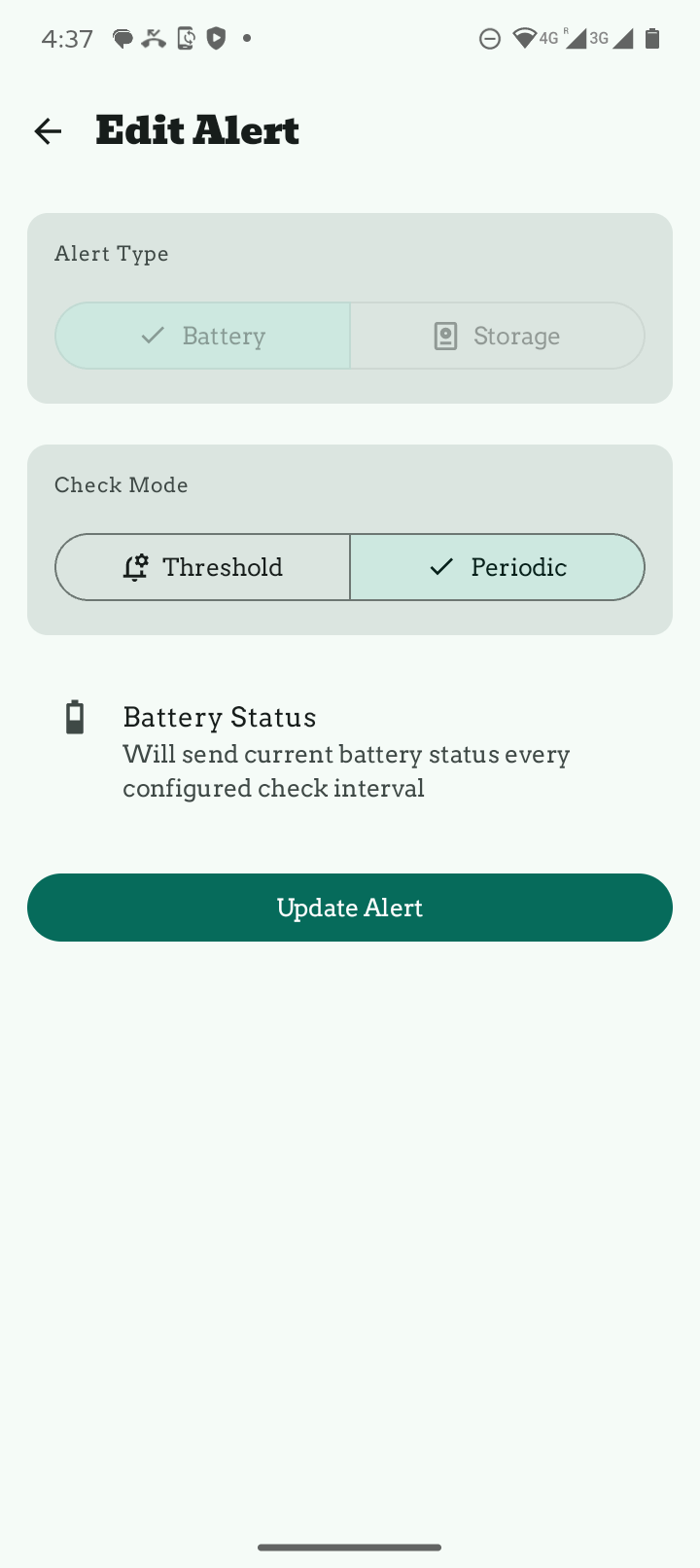
I concluded that a simpler approach would be to send battery level periodically, and the webhook handler controlled the plug based on those reports.
I prompted Codex in the repository to develop the new feature.
After 15 minutes of hacking, it produced a solution. I didn’t have a full Android development setup, and I didn’t want to bloat my Mac with it.
So I asked Codex to build the APK inside Docker. Five more minutes and it was done.
 |
|---|
I replaced the app with the custom patched build, and it worked.
I went ahead and created a pull request to upstream, and it was accepted. As a nice bonus, I no longer need to maintain a fork.
To be fair, heartbeats and battery-level webhooks were not coming on a strict schedule.
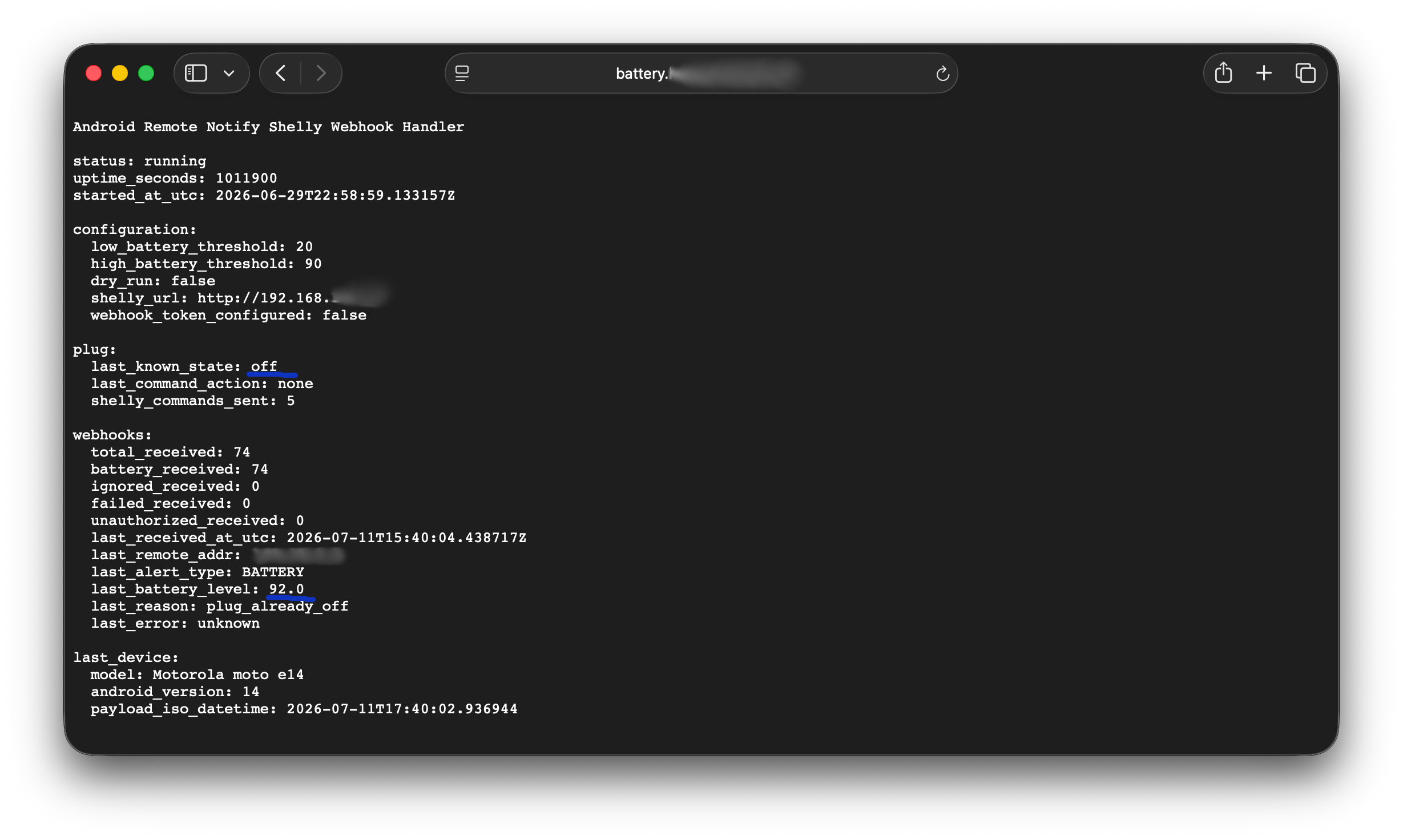
To monitor the webhook handler, I built a page that reports things like:
- When the last state was reported
- What the battery level was at that time
- The last command sent to Shelly.
- Etc.
Caveats
During webhook testing, I encountered an issue where both Android apps struggled to send requests to an insecure HTTP endpoint.
There is probably a configuration option somewhere that allows such behavior.
I simply routed the traffic through my custom domain with Let’s Encrypt certificates.
Final thoughts
It was my first time tinkering with Android, and I enjoyed it. I expected it to require more hassle.
Happy hacking!