My previous guide used ingress-nginx annotations to put internal Kubernetes services behind OAuth2 Proxy. It was written for an ingress-nginx setup. That controller is being retired, and Gateway API is the direction Kubernetes recommends for new traffic management work. This post rebuilds the same authentication flow with Gateway API, Traefik, OAuth2 Proxy, and Pocket ID.
Why Traefik? Gateway API standardizes
GatewayandHTTPRoute, but it does not standardize browser-based OIDC login or an external-auth filter. This setup uses Traefik’sMiddlewareCRD for those pieces. With Envoy Gateway, Kong, Cilium, or another implementation, the Gateway API resources can stay, but the authentication adapter must change.
What we are building
This setup exposes three HTTPS hostnames below one domain:
pocket-id.k8s.example.comis the Pocket ID UI and OIDC issuer.auth.k8s.example.comserves OAuth2 Proxy endpoints.whoami.k8s.example.comis a protected demo service.
One parent domain lets OAuth2 Proxy use a narrowly scoped shared session cookie, such as .k8s.example.com. Do not set the cookie domain to a wider parent domain when unrelated applications use it.
sequenceDiagram
    autonumber
    participant B as Browser
    participant T as Traefik Gateway
    participant O as OAuth2 Proxy
    participant P as Pocket ID
    participant S as whoami

    B->>T: GET whoami.k8s.example.com
    T->>O: ForwardAuth /oauth2/auth
    O-->>T: 401 (no session)
    T-->>B: 302 /oauth2/sign_in?rd=...
    B->>O: Start sign-in
    O->>P: OIDC authorization request
    P-->>B: Authenticate with passkey
    P-->>O: Callback with authorization code
    O-->>B: Set session cookie and redirect back
    B->>T: Repeat original request
    T->>O: ForwardAuth /oauth2/auth
    O-->>T: 202 + identity headers
    T->>S: Forward authenticated request
    S-->>B: Protected response
/oauth2/auth only checks a session: it returns 202 when one is valid and 401 otherwise. Traefik’s Errors middleware turns that 401 into the browser redirect to OAuth2 Proxy. That separate redirect step is the most important difference from the old ingress-nginx annotations.
Before you start
I verified the authentication flow on a local K3s cluster. The commands below use standard Kubernetes and Helm commands, so they are not tied to that local environment. Start with a running cluster, kubectl, and Helm. You also need DNS for *.k8s.example.com pointing to the endpoint that accepts HTTPS traffic for Traefik.
Gateway is only routing configuration; Traefik is the process that accepts the traffic. On a managed cloud cluster, expose Traefik through a Service of type LoadBalancer. On bare metal, use MetalLB or your existing external load balancer. A local cluster normally uses its own port mapping or local load-balancer mechanism.
Replace k8s.example.com with a domain you control before applying any manifest. The login callback and session cookie need HTTPS.
Step 0: install Gateway API
Gateway API is an add-on API, not a resource installed in every Kubernetes cluster. Install its standard CRDs before installing a Gateway implementation. If your platform manages Gateway API already, check its documentation before applying another version.
kubectl apply -f https://github.com/kubernetes-sigs/gateway-api/releases/download/v1.6.1/standard-install.yaml

kubectl get crd gatewayclasses.gateway.networking.k8s.io \
  gateways.gateway.networking.k8s.io \
  httproutes.gateway.networking.k8s.io
The standard channel is enough here. It contains the stable Gateway, GatewayClass, and HTTPRoute APIs.
Step 1: install Traefik and create a Gateway
This guide uses Traefik’s Gateway API provider plus its Kubernetes CRD provider. The first handles standard Gateway and HTTPRoute objects. The second is required because the authentication middleware is a Traefik CRD.
helm repo add traefik https://traefik.github.io/charts
helm repo update

helm upgrade --install traefik traefik/traefik \
  --namespace traefik \
  --create-namespace \
  --set providers.kubernetesGateway.enabled=true \
  --set service.spec.type=LoadBalancer \
  --wait
The LoadBalancer setting above is the common managed-cluster case: the cloud controller creates an external address for the Traefik Service. If your cluster uses another traffic-entry mechanism, adapt this one setting and point DNS at that endpoint. The Gateway resource below does not create the external listener by itself.
Check that Traefik registered a GatewayClass and that its Service has an address before adding DNS:
kubectl get gatewayclass
kubectl get svc -n traefik
I assume cert-manager and a working ClusterIssuer named letsencrypt-prod already exist. A DNS-01 issuer is usually the simplest way to obtain a wildcard certificate. If you use HTTP-01, request the individual names instead.
apiVersion: v1
kind: Namespace
metadata:
  name: oauth-example
---
apiVersion: cert-manager.io/v1
kind: Certificate
metadata:
  name: k8s-example-com
  namespace: oauth-example
spec:
  secretName: k8s-example-com-tls
  issuerRef:
    kind: ClusterIssuer
    name: letsencrypt-prod
  dnsNames:
    - "*.k8s.example.com"
---
apiVersion: gateway.networking.k8s.io/v1
kind: Gateway
metadata:
  name: internal-gateway
  namespace: oauth-example
spec:
  gatewayClassName: traefik
  listeners:
    - name: https
      protocol: HTTPS
      port: 443
      hostname: "*.k8s.example.com"
      tls:
        mode: Terminate
        certificateRefs:
          - kind: Secret
            name: k8s-example-com-tls
      allowedRoutes:
        namespaces:
          from: Same
Apply it and wait for both the certificate and Gateway:
kubectl apply -f gateway.yaml
kubectl get certificate,gateway -n oauth-example -w
Do not continue until the Certificate is Ready=True and the Gateway is Programmed=True.
Step 2: install and configure Pocket ID
I use Pocket ID as the OIDC provider because passkeys make a small personal or team setup simple. You can substitute another OIDC provider; only the OAuth2 Proxy provider settings change.
helm repo add anza-labs https://anza-labs.github.io/charts
helm repo update

helm upgrade --install pocket-id anza-labs/pocket-id \
  --namespace oauth-example \
  --create-namespace \
  --set ingress.enabled=false \
  --set persistence.data.enabled=true
Expose it with a standard HTTPRoute rather than an Ingress. The chart’s Service listens on port 80.
apiVersion: gateway.networking.k8s.io/v1
kind: HTTPRoute
metadata:
  name: pocket-id
  namespace: oauth-example
spec:
  parentRefs:
    - name: internal-gateway
      sectionName: https
  hostnames:
    - pocket-id.k8s.example.com
  rules:
    - backendRefs:
        - name: pocket-id
          port: 80
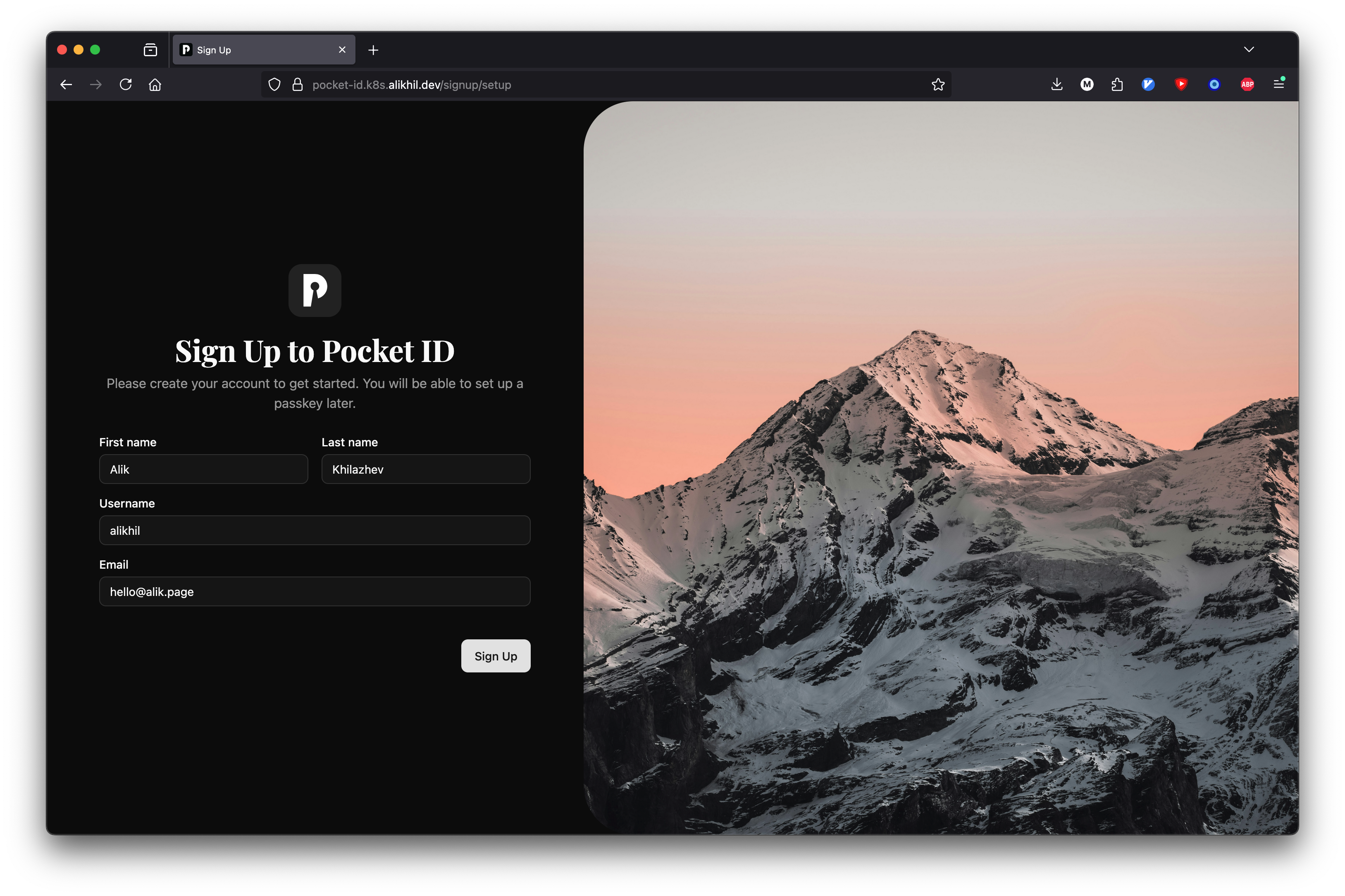
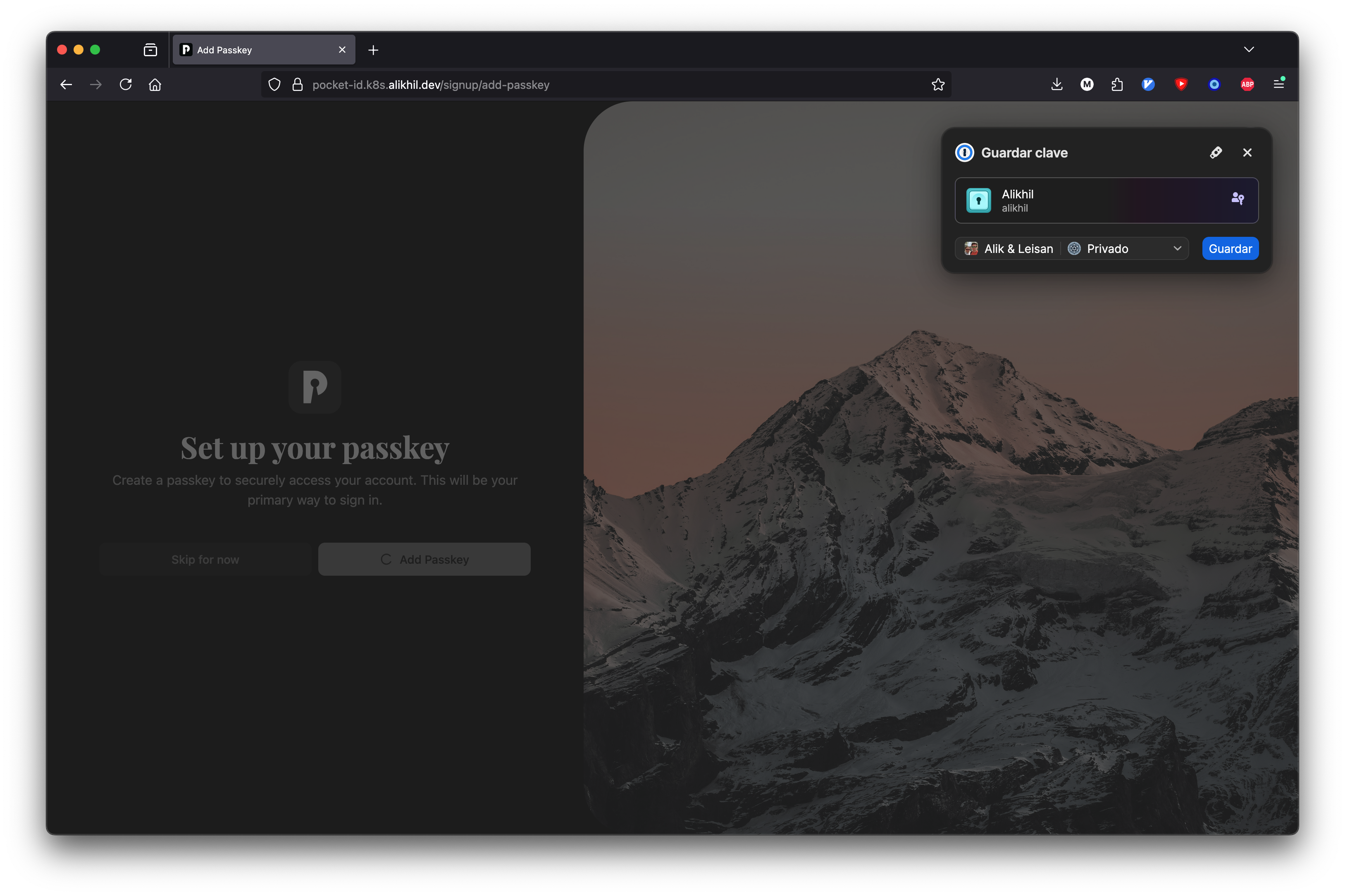
Apply it, then open https://pocket-id.k8s.example.com/signup/setup. Complete Pocket ID’s initial setup. Create a user with a passkey and make sure its email address is verified.
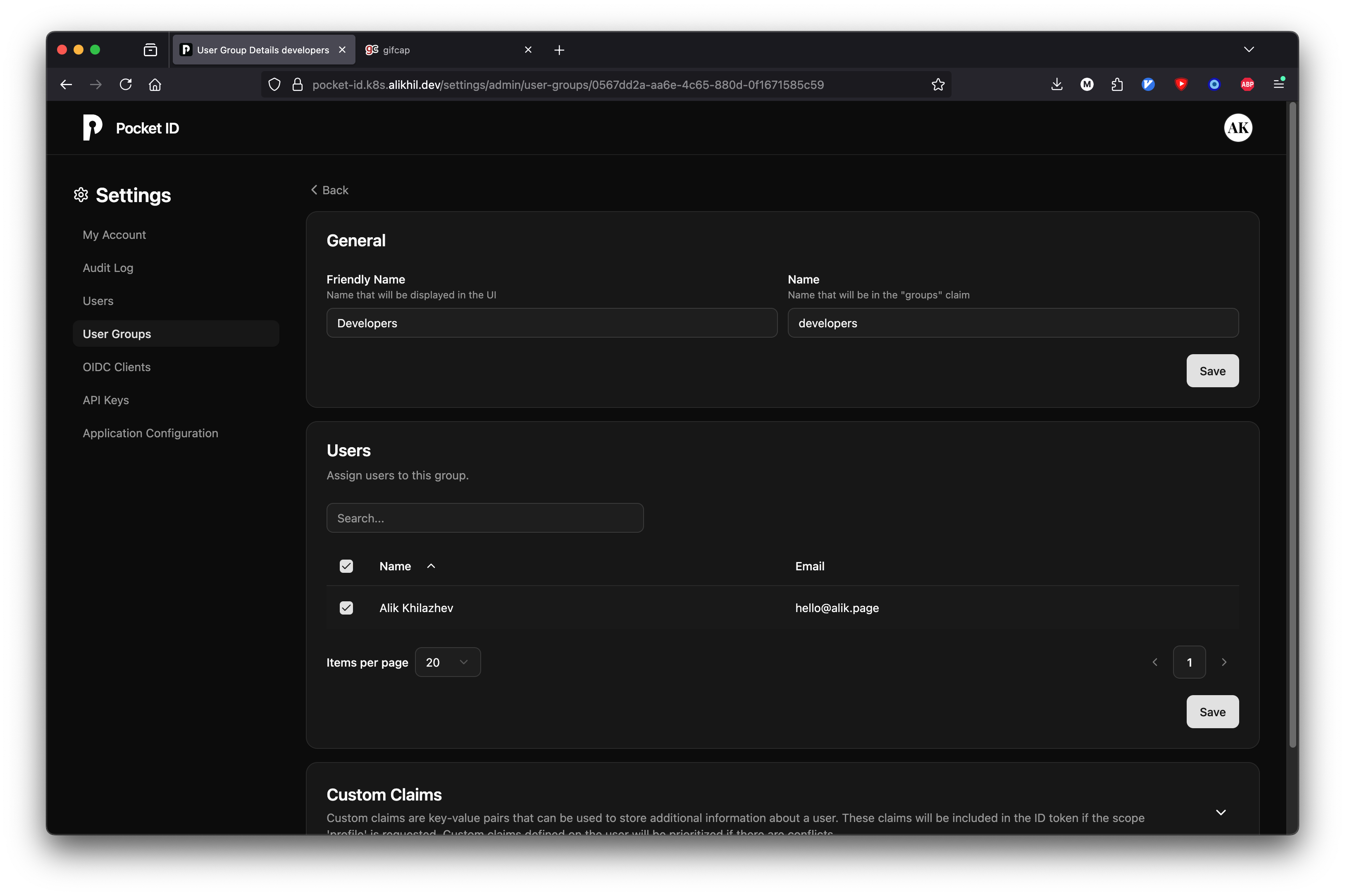
Create a developers group and add the user to it.
Then create an OIDC client named OAuth2 Proxy with this redirect URL:
https://auth.k8s.example.com/oauth2/callback
Save its client ID and client secret. OAuth2 Proxy will allow only members of developers; Pocket ID must therefore send the groups claim. Verified email is also required: OAuth2 Proxy rejects Pocket ID’s ID token if its email is not verified.
Step 3: install OAuth2 Proxy
Create a Kubernetes Secret with the OIDC client credentials and a 32-byte cookie secret:
export CLIENT_ID="replace-me"
export CLIENT_SECRET="replace-me"
export COOKIE_SECRET="$(openssl rand -base64 32 | tr -d '\n')"

kubectl -n oauth-example create secret generic oauth2-proxy-secrets \
  --from-literal=client-id="$CLIENT_ID" \
  --from-literal=client-secret="$CLIENT_SECRET" \
  --from-literal=cookie-secret="$COOKIE_SECRET"
Use the official chart’s gatewayApi values to create OAuth2 Proxy’s HTTPRoute:
# oauth2-proxy-values.yaml
config:
  existingSecret: oauth2-proxy-secrets
  cookieName: general-oauth2
  configFile: |-
    provider = "oidc"
    provider_display_name = "Pocket ID"
    oidc_issuer_url = "https://pocket-id.k8s.example.com"
    redirect_url = "https://auth.k8s.example.com/oauth2/callback"
    scope = "openid profile email groups"
    allowed_groups = [ "developers" ]

    email_domains = [ "*" ]
    upstreams = [ "file:///dev/null" ]
    reverse_proxy = true
    skip_provider_button = true

    cookie_secure = true
    cookie_samesite = "lax"
    cookie_domains = [ ".k8s.example.com" ]
    whitelist_domains = [ ".k8s.example.com" ]
    cookie_csrf_per_request = true
    cookie_csrf_expire = "15m"

    set_xauthrequest = true
    set_authorization_header = true
    pass_authorization_header = true
    pass_access_token = true

gatewayApi:
  enabled: true
  gatewayRef:
    name: internal-gateway
    namespace: oauth-example
    sectionName: https
  hostnames:
    - auth.k8s.example.com
  rules:
    - name: oauth2
      matches:
        - path:
            type: PathPrefix
            value: /oauth2
helm repo add oauth2-proxy https://oauth2-proxy.github.io/manifests
helm repo update

helm upgrade --install oauth2-proxy oauth2-proxy/oauth2-proxy \
  --namespace oauth-example \
  --values oauth2-proxy-values.yaml
Open https://auth.k8s.example.com/oauth2/sign_in now. You should reach Pocket ID and return to OAuth2 Proxy. Fix the issuer URL, callback URL, client secret, or TLS before adding an application route.
Step 4: protect a service with ForwardAuth
The protected service needs an HTTPRoute, a ForwardAuth middleware that calls OAuth2 Proxy, and an Errors middleware that changes an unauthenticated 401 into a browser redirect.
apiVersion: traefik.io/v1alpha1
kind: Middleware
metadata:
  name: oauth2-auth
  namespace: oauth-example
spec:
  forwardAuth:
    address: http://oauth2-proxy.oauth-example.svc.cluster.local:80/oauth2/auth
    trustForwardHeader: false
    authResponseHeaders:
      - Authorization
      - X-Auth-Request-User
      - X-Auth-Request-Email
      - X-Auth-Request-Groups
---
apiVersion: traefik.io/v1alpha1
kind: Middleware
metadata:
  name: oauth2-errors
  namespace: oauth-example
spec:
  errors:
    status:
      - "401-403"
    service:
      name: oauth2-proxy
      port: 80
    query: /oauth2/sign_in?rd={url}
    statusRewrites:
      "401": 302
---
apiVersion: apps/v1
kind: Deployment
metadata:
  name: whoami
  namespace: oauth-example
spec:
  replicas: 1
  selector:
    matchLabels:
      app: whoami
  template:
    metadata:
      labels:
        app: whoami
    spec:
      containers:
        - name: whoami
          image: traefik/whoami:v1.11.0
          ports:
            - containerPort: 80
---
apiVersion: v1
kind: Service
metadata:
  name: whoami
  namespace: oauth-example
spec:
  selector:
    app: whoami
  ports:
    - port: 80
      targetPort: 80
---
apiVersion: gateway.networking.k8s.io/v1
kind: HTTPRoute
metadata:
  name: whoami
  namespace: oauth-example
spec:
  parentRefs:
    - name: internal-gateway
      sectionName: https
  hostnames:
    - whoami.k8s.example.com
  rules:
    - filters:
        - type: ExtensionRef
          extensionRef:
            group: traefik.io
            kind: Middleware
            name: oauth2-errors
        - type: ExtensionRef
          extensionRef:
            group: traefik.io
            kind: Middleware
            name: oauth2-auth
      backendRefs:
        - name: whoami
          port: 80
Keep the middleware order: ForwardAuth returns the 401, then Errors changes it into a login redirect while preserving the original URL.
trustForwardHeader: false is the safe default for a direct public entry point. A production setup behind Cloudflare or a cloud load balancer must define its trusted proxy boundary before accepting forwarded headers.
Test the flow
Use a private browser window so that an old cookie cannot hide a problem:
kubectl apply -f whoami.yaml
open https://whoami.k8s.example.com
You should be redirected to Pocket ID. After authentication, whoami loads and displays the headers that OAuth2 Proxy passed through Traefik.
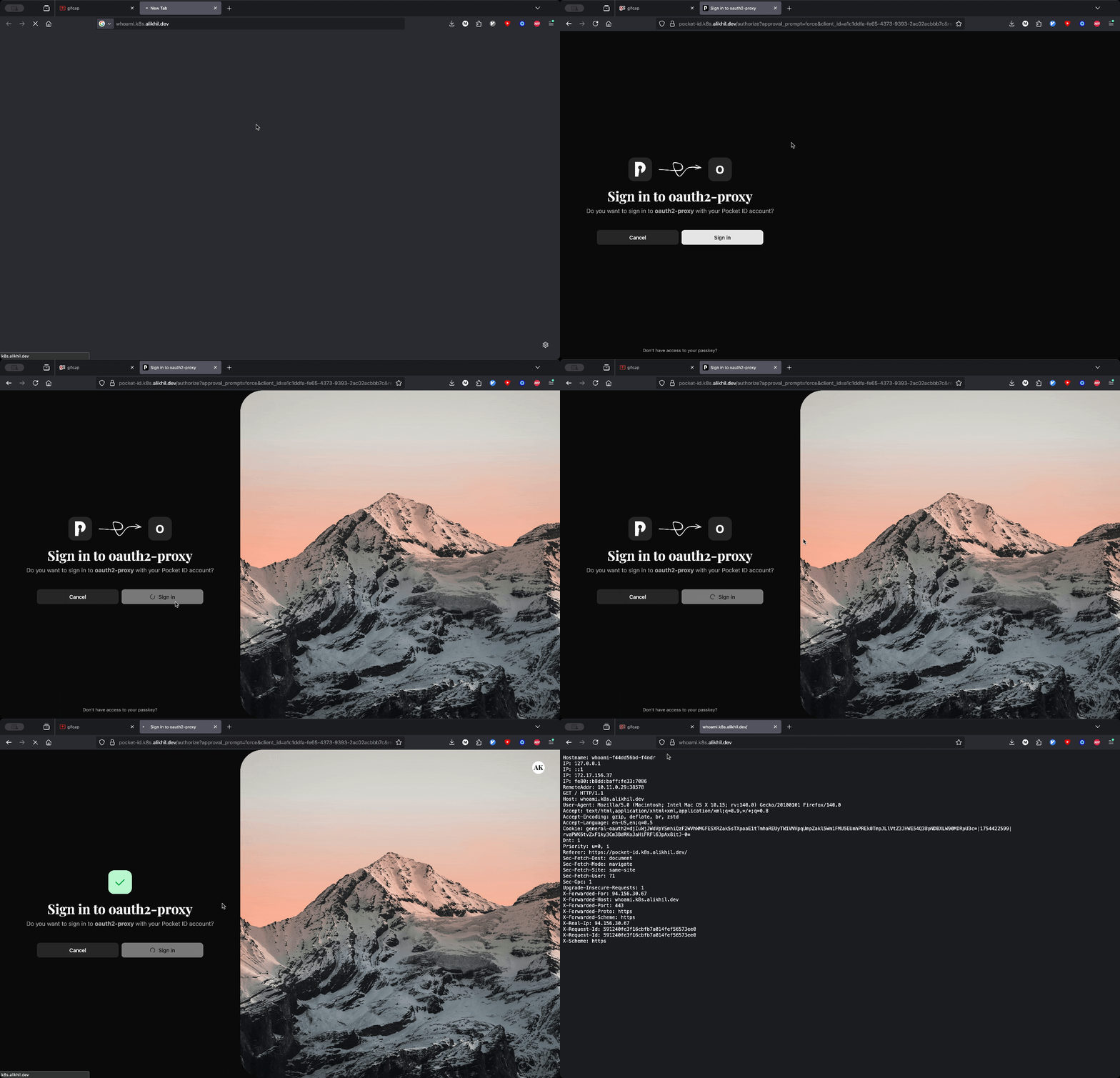
If the browser receives a plain 401, check that both middleware resources are attached to the HTTPRoute and that statusRewrites maps 401 to 302. If the login works but access is denied, check the user’s verified email and membership in developers. Gateway and route status are useful for routing problems:
kubectl describe gateway,httproute -n oauth-example
Where to go next
These steps demonstrate the authentication flow. A production deployment still needs a secret store, network policies, a session store when needed, and explicit trusted proxy configuration.
If a local Kubernetes detail is unclear or the steps above do not work as expected, see alikhil/oauth2-proxy-k8s-lab. It contains the k3d configuration I used, including traffic entry, DNS, certificates, and cleanup. The old ingress-nginx guide remains available for existing installations; migrate one hostname at a time after verifying login, logout, deep links, and an expired session.